
View MotionGenesis™ simulations
Animation
CAD/STL import
Visual debugging
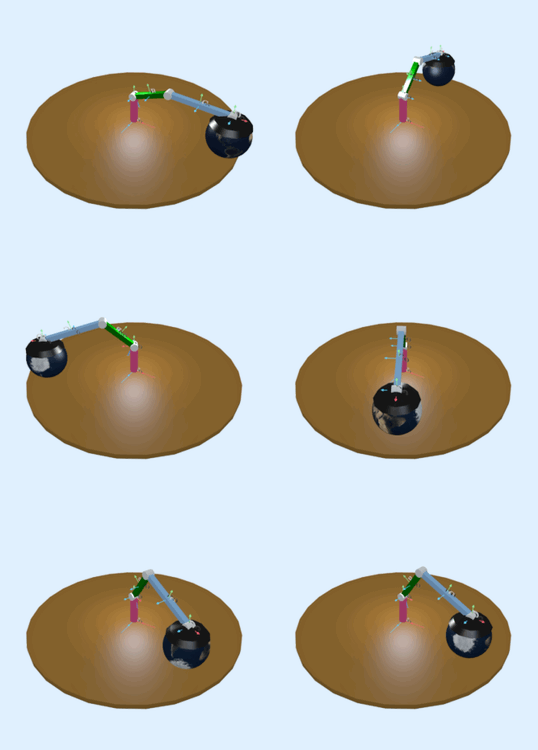
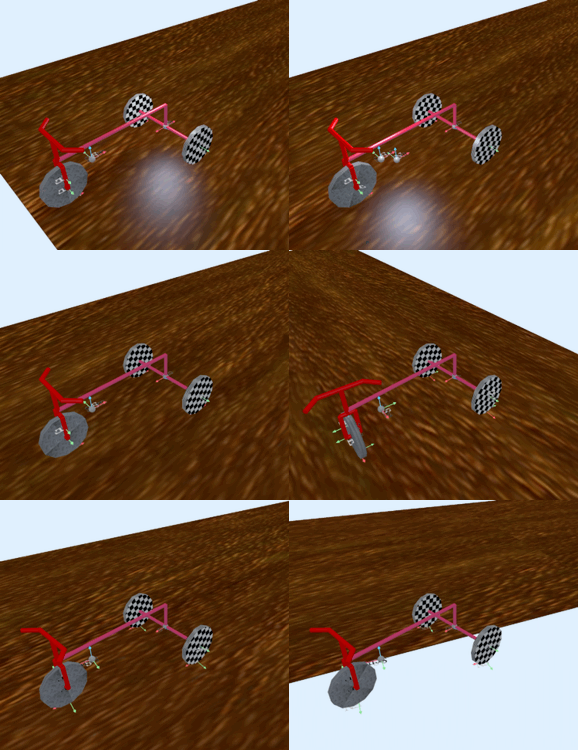
- Use the MotionGenesis™ Animate() command to create output for objects to be animated by external 3rd-party visualization programs, such as Adam Leeper's MGView.
- Attach multiple shapes (blocks, cylinders, shells, cones, spheres, meshes) to each MotionGenesis RigidBody.
- Control each object's color, labels, textures, position, and orientation.
- Vary camera, lighting, animation frame speed, view-frame, etc.
Installing MGView (3rd-party software)
- Visit Adam Leeper's pre-release version website.
- Near the top right of the page, press "Download Release"
- Move the downloaded "MGView" folder into your "MotionGenesis" folder.
- To start MGView, open your "MGView" folder and double-click on the MGView executable.
PC/Windows:Double-click on "RunMGViewWindows.bat".Apple/MAC:Double-click on "RunMGViewMac".Alternative: Open an OS terminal and type:PC/Windows: pathToMotionGenesisFolder/MGView/RunMGViewWindows.batApple/MAC: /Applications/MotionGenesis/MGView/RunMGViewMac
- Note: If MGView does not open, there may be a missing Node.js. If helpful, install Node.js.
- Note: After installation, an Internet connection is not required to use MGView.